Most office work happens on a screen, so where you put that screen shapes your posture for hours each day. A screen that's too low pulls your head forward; one that's off to the side makes you twist. This guide explains how to position monitors and laptops, based on guidance from WorkSafe Victoria, WorkSafe Queensland and Safe Work Australia.
This guide is general information written in our own words, based on the official sources listed at the end. It isn't health, legal or tax advice. Everyone's body, work and space are different, so if you have pain or a health condition, talk to a health professional, and check tax questions with the ATO or a registered tax agent. We don't sell furniture or recommend particular brands or shops.
Set your chair and desk first
WorkSafe Victoria advises adjusting computer screens after you've established chair and desk heights. If you change your chair later, check your screen again.
Height
WorkSafe Victoria says the top of the screen should be level with or slightly lower than your eyes when sitting upright. Safe Work Australia's infographic says your eye level should be slightly below the top of the screen, with your head in a neutral position and chin parallel to the ground. If you wear multifocal glasses, you may find a slightly lower screen more comfortable; ask your optometrist.
Distance
Both Safe Work Australia and WorkSafe Victoria suggest about one arm's length from your usual seated position. If you need to lean forward to read, increase the text size rather than moving the screen too close.
Directly in front
Safe Work Australia's infographic says the screen should be directly in front of you. A screen to one side means turning your head for hours.
Glare and lighting
WorkSafe Victoria advises positioning screens to avoid reflections or glare from windows or lights, for example not facing or backing onto windows. Its working from home checklist suggests placing the monitor perpendicular to windows or other strong light sources. Blinds, adjusting brightness and a matte screen help.
Monitor stands and arms
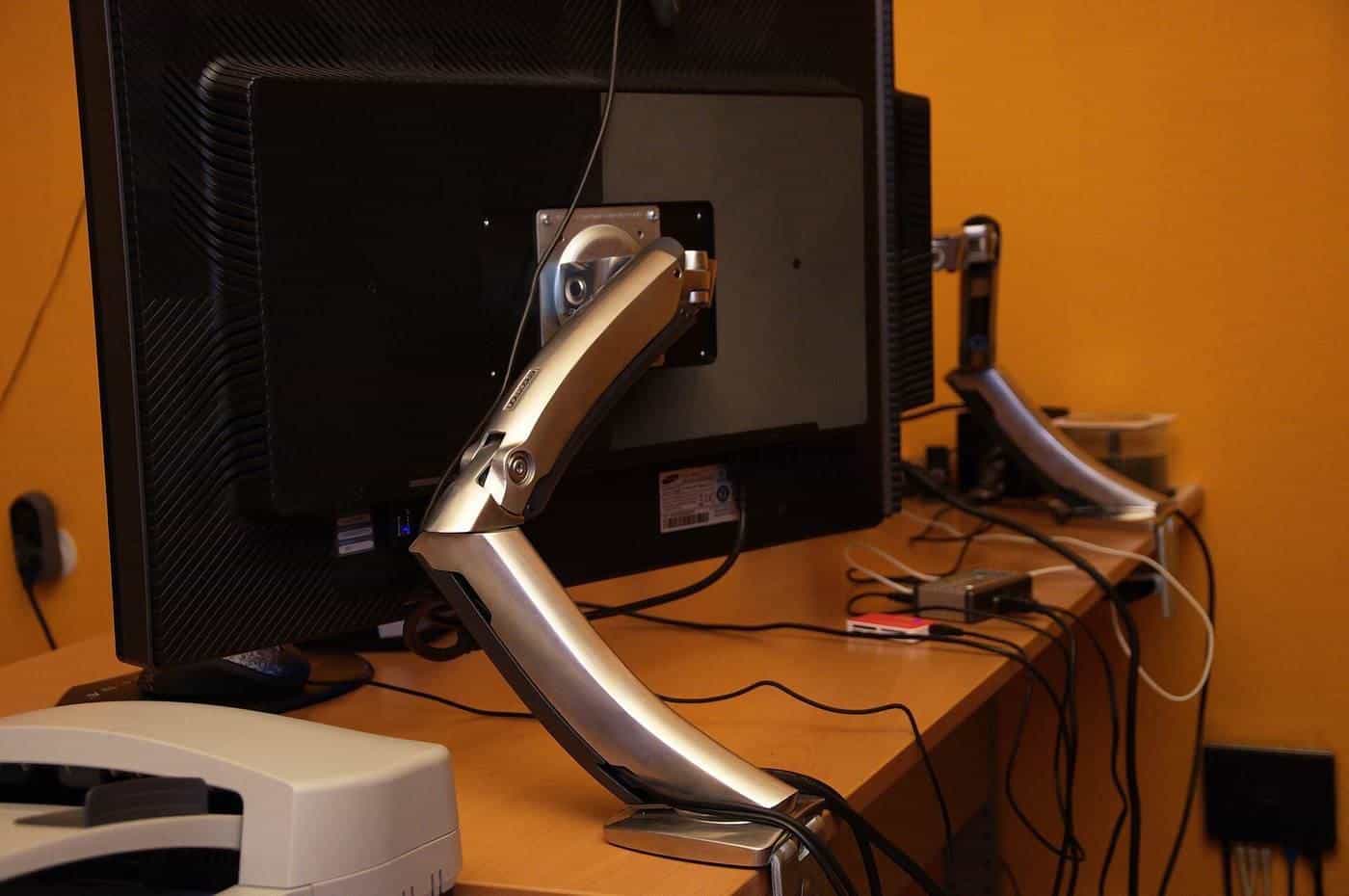
WorkSafe Victoria explains that screens may need to be raised above desk height to reduce strain on neck muscles. Fixed-height stands suit single-user workstations where the height already suits the person. Adjustable stands and monitor arms let you change height and distance, which is useful on sit-stand desks and shared desks. Check the monitor's weight and mounting pattern and the desk's thickness before buying an arm.
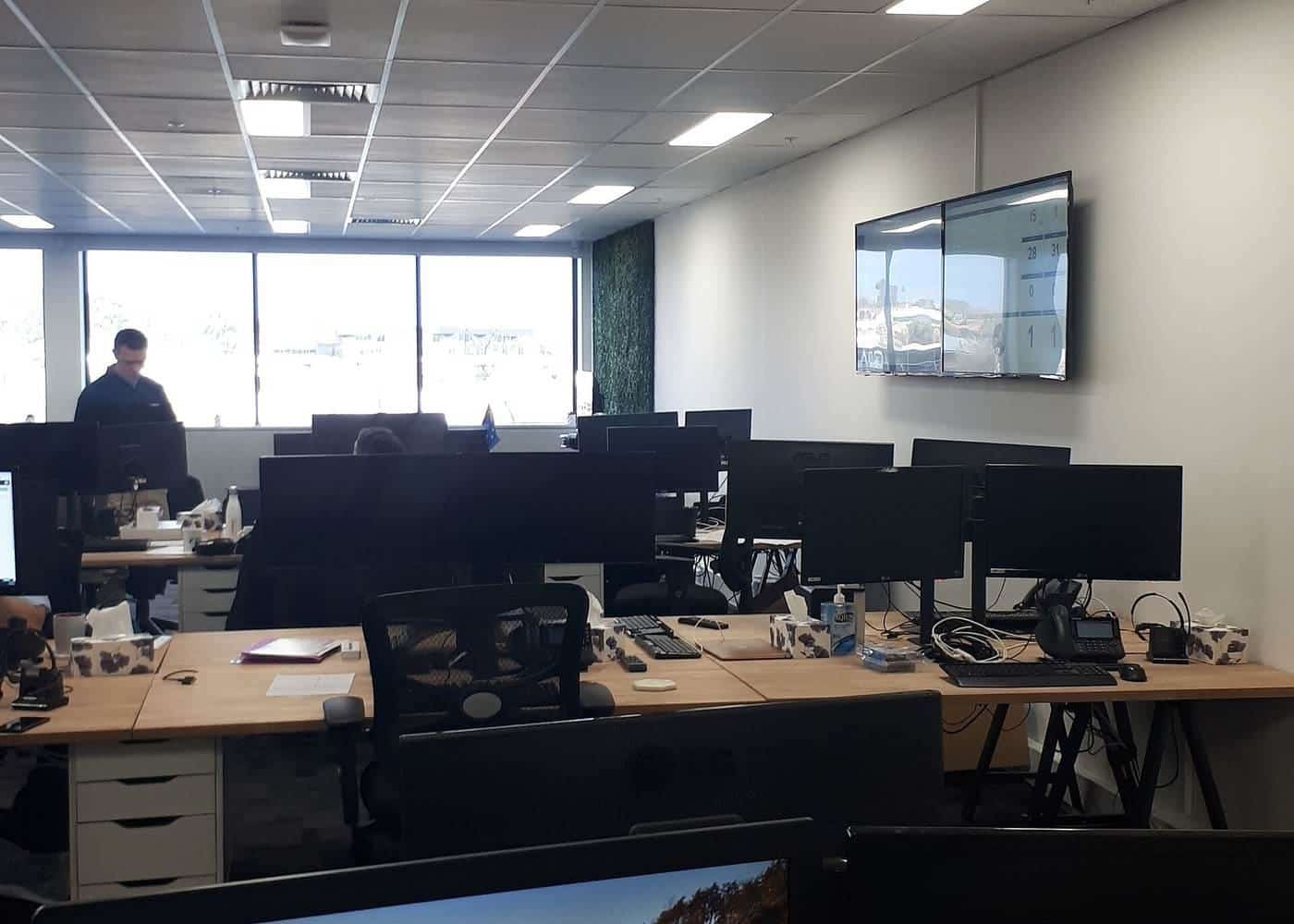
Two or more monitors
WorkSafe Victoria says setting up multiple monitors requires the same approach as a single screen. Its guidance includes:
- If you use one more than the other, place the primary monitor straight ahead, and move your chair when using the secondary monitor to avoid twisting.
- Adjust height so the tops of the monitors are at eye level or lower.
- Place screens at equal viewing distance, particularly if you wear reading glasses.
- Use a deeper desk so screens can sit further away and there's room for other tasks.
Laptops
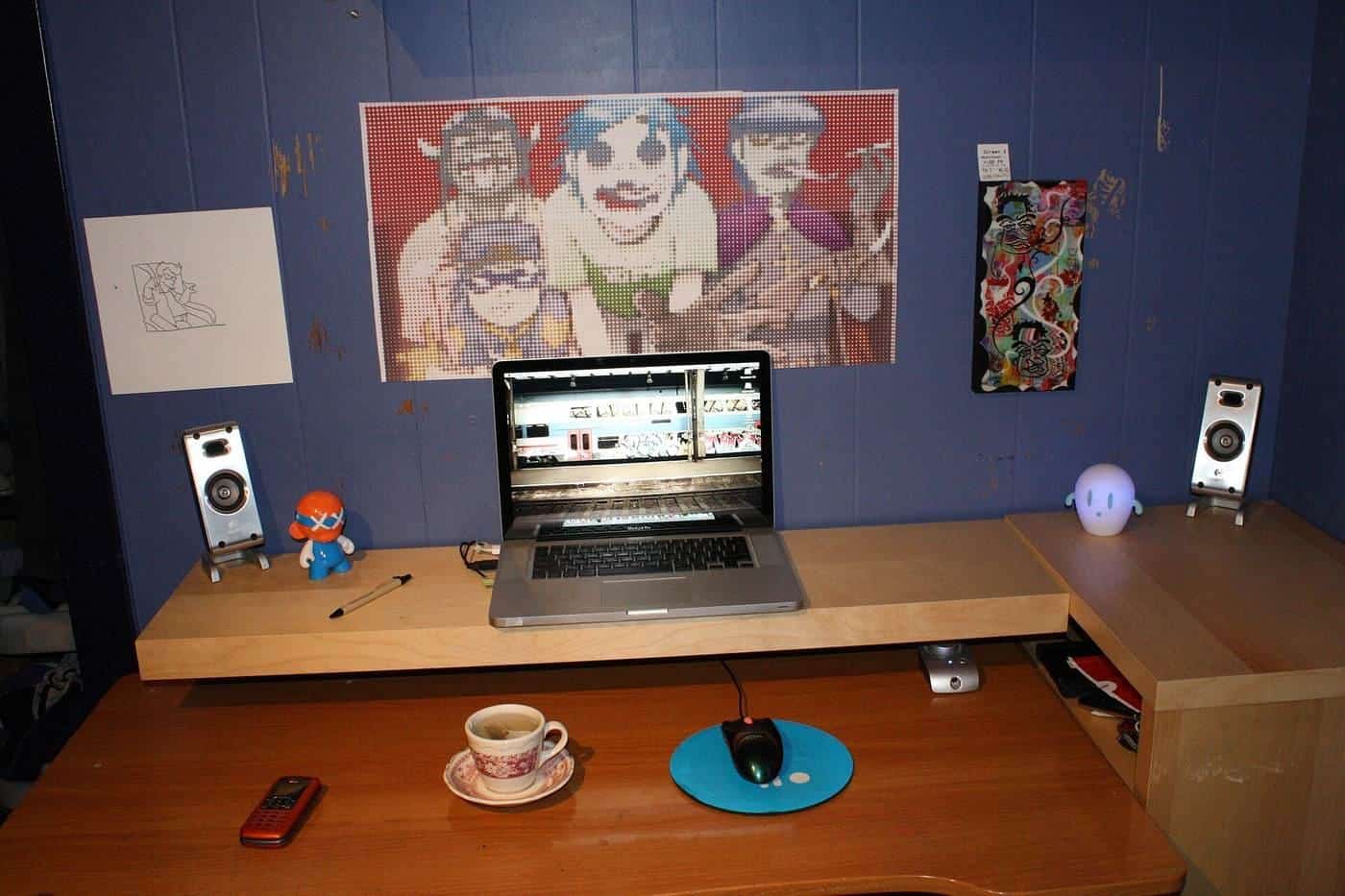
Laptops are convenient but awkward for long use: if the screen is at the right height, the keyboard is too high, and vice versa. WorkSafe Victoria's working from home checklist notes that laptops aren't recommended for prolonged use and suggests using a laptop stand. WorkSafe Queensland suggests that if you don't have a monitor, you can raise your laptop on a stable item such as reams of paper or large hardcover books, and use a separate keyboard and mouse.
A good laptop setup:
- Raise the laptop so the top of the screen is at or slightly below eye level.
- Use a separate keyboard and mouse at elbow height.
- Or connect an external monitor and use the laptop as a second screen, at the same height and distance, as WorkSafe Victoria suggests.
Sit-stand desks
When you switch between sitting and standing, WorkSafe Queensland notes you may need to adjust your monitor height. A monitor arm makes this easier.
Eyes
Looking at a screen for long periods can make eyes tired. Take regular breaks, look into the distance from time to time and blink. If you have ongoing eye discomfort or headaches, see an optometrist.
Common screen mistakes
Common mistakes include a screen too low (often a laptop on the desk), too far to one side, too close, facing a bright window, or set for one person and used by another. Another is two monitors placed so the join is directly ahead when one screen is used far more than the other. Each is easy to fix once you notice it.
Working with documents
If you often type from paper documents, WorkSafe Victoria suggests a document holder beside the screen or between the screen and keyboard. This avoids repeatedly looking down at the desk and back up to the screen, reducing neck movement.
Try the desk height checker
Our free desk height checker lets you enter your seated and standing elbow heights, and optionally a desk's lowest and highest settings. It suggests where your desk surface should sit and whether the desk's range covers your heights, using the AS/NZS 4442 ranges that WorkSafe Victoria cites. It runs entirely in your browser, and nothing you enter is sent anywhere.
Where our information comes from
Factual statements in our guides are based on official and authoritative sources, including Safe Work Australia, WorkSafe Victoria, WorkSafe Queensland, the Australian Government Department of Health, the Australian Taxation Office and the ACCC. We link to each source at the end of the page and write everything in our own words. We don't invent statistics, prices or product test results, and we don't rank or review brands.
Everyone is different
Workstation guidance describes general principles that suit most people. Your body, your tasks and your space are unique, and what feels comfortable for one person may not suit another. Use the guidance as a starting point, adjust until you're comfortable and, if you have pain or a health condition, get advice from a health professional such as a physiotherapist or occupational therapist.
Small changes add up
You don't need to replace all your furniture to work more comfortably. Raising a screen, moving a keyboard closer, adding a footrest or standing for phone calls can each make a difference. Start with the change that addresses your biggest discomfort, then review your setup again after a week.
Workplaces and employers
Employers have duties under work health and safety laws to manage risks to workers, including from workstations and from too much sitting or standing, so far as is reasonably practicable. That applies in offices and, in many cases, when people work from home. If your workstation isn't working for you, talk to your manager or health and safety representative.
Corrections and feedback
We review our guides against their sources and show the date each page was last checked. If you notice something out of date or incorrect, such as a change to ATO rates or workplace guidance, please tell us through our contact page. We read every message and correct mistakes promptly.
About this site
Office Desks is an independent information site. We aren't a furniture retailer, manufacturer, ergonomist, government agency or tax adviser, and we don't sell furniture or recommend particular brands or shops. Our guides are general information, not health, legal or tax advice.
A short glossary
Sit-stand desk: a desk whose height can be raised and lowered so you can work sitting or standing. Desk converter: a platform on top of a desk that raises the screen and keyboard. Footrest: a stable, sloped platform for your feet when they don't reach the floor comfortably. Five-point base: a chair base with five castors or glides, the most stable design. Monitor arm: an adjustable bracket that holds a screen above the desk. AS/NZS 4442: the Australian and New Zealand standard for office desks, which WorkSafe Victoria cites for desk height ranges. Decline in value: the ATO term for claiming the cost of an asset over its effective life.
Key points
- Adjust the screen after your chair and desk.
- Top of the screen level with or slightly below eye level, about an arm's length away.
- Place the screen directly in front and avoid glare from windows and lights.
- Primary monitor straight ahead; equal distances for multiple screens.
- Raise laptops on a stand and use a separate keyboard and mouse.
Frequently asked questions
How far away should my monitor be?
About one arm's length away when you're sitting in your usual typing position, according to Safe Work Australia and WorkSafe Victoria.
Should the top of my screen be at eye level?
WorkSafe Victoria says the top of the screen should be level with or slightly lower than your eyes when sitting upright.
How do I set up two monitors?
WorkSafe Victoria suggests placing your primary monitor straight ahead, and if you use both equally, placing them so the join is in front of you.
Is working on a laptop all day OK?
WorkSafe Victoria's working from home checklist says laptops aren't recommended for prolonged use without a stand. Raise the laptop and use a separate keyboard and mouse.
Sources and further reading
Facts on this page were checked against these primary and official sources. Conditions change — confirm before you travel or buy.
- Office health and safety: working with computers, printers and telephones — WorkSafe Victoria
- Setting up your workstation (infographic) — Safe Work Australia
- Setting up your workstation — WorkSafe Queensland
- Working from home safety and wellbeing checklist — WorkSafe Victoria
- Setting up a workstation and working with computers (checklist) — WorkSafe Victoria